
In certain cases, it may be necessary for our engineers to remotely connect to your machine. This way 3devo will be able to help with troubleshooting, updating your firmware, or other outcomes.
Note: Some networks, like office or university networks, may block the connection that the FM TWO needs. Using a mobile hotspot is often easier in these cases.
Note: This proccess is only for windows , we will add one for Mac too , dont worry
Step 1: Check Your Network Connection
Powershell
- Go to Search
- Search for Powershell
- Right‑click Powershell → Open
Run the following command:
Test-NetConnection ras.torizon.io -Port 2222
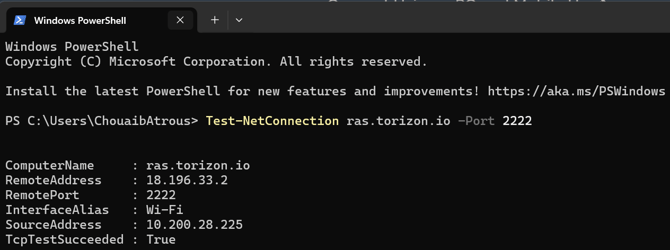
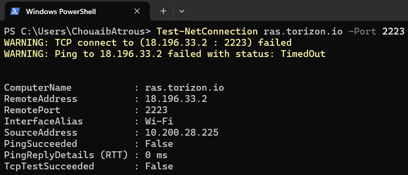
If the TCP test result is True, you can now share your PC internet connection with the Filament Maker Two.
If the TCP test result is False, try connecting your PC to a different Wi-Fi network or a mobile hotspot.
Once the test shows True, you can share your PC’s internet connection with the Filament Maker TWO and proceed with setup.